Showing posts with label Windows-Tips and Tricks. Show all posts

Monday, 31 March 2014

Free Animation Software for PC

Here are the of free animation software for Windows and Mac
(1)
Anime Studio

Bring your imagination to life! Anime Studio is your complete animation program for creating 2D movies, cartoons, anime and cut out animations. Create your own desktop animated shorts in the style of South Park Studios©, Nickelodeon Animation Studios©, Cartoon Network Studios©, Disney Animation Studios© or use it to produce animations for film, video, commercials or streaming over the web.
Official Website :-http://anime.smithmicro.com/
Screenshots


(2)
FotoMorph

FotoMorph is a photo animation and a Flash banner rotation tool with a super-friendly user interface.Amaze your friends and family with unbelievable transformations! Morphing is an animation technique in which one image is gradually turned into another. FotoMorph lets you make incredible morphs in minutes! You've seen them in the movies and on TV, and now you can create them yourself. Turn a friend into a tiger. Watch your child grow into an adult. Unleash your imagination with the power of FotoMorph. FotoMorph is designed to create animations in real time. The rendering engine takes advantage of hardware acceleration, and the rendering speed easily goes up to several hundred FPS. The speed makes it possible to play final effects in real time. Using FotoMorph you can do everything a professional animator does to create amazing animations. Flash, Animated GIF, AVI, JPEG, and other formats are supported.
Official Website :-http://www.diphso.no/FotoMorph.html
Screenshots


(3)
Abrosoft FantaMorph Pro

Create morphing movies and animation effects from still images.Abrosoft FantaMorph Pro supports image formats including BMP, JPEG, TIFF, PNG, PSD, GIF, TGA, PCX and 32-bit formats with alpha. FantaMorph allows you to export to formats including image sequence, AVI, QuickTime, animated GIF, Flash, screen saver and standalone EXE. You can crop, rotate, flip and adjust source images with the built-in tools. Using hardware acceleration, it allows you to play final effects in real time without exporting to a file.
Official Website :-www.fantamorph.com
Screenshots


(4)
Aurora 3D Animation Maker

Aurora 3D Animation Maker will allow you to create beautiful and eye-catching 3D animations that will transform your text or logos into original and awesome looking creations! Using just a single timeline, you’ll be able to control all aspects of your animation, including its length, speed of playback, and much more!
Official Website :-http://www.presentation-3d.com/
Screenshots


(5)
Pivot Animator

Pivot Animator, previously known as Pivot Stickfigure Animatoris a simple software to create animations. Based on stickfigures, the software gives you the possibility to create an animation by moving the joints and nodes of the figures.There is no need to redraw your figures in each frames. The figure creator gives you the possibility to create any types of figures you want.

Official Website :-http://www.pivotanimator.net
Screenshots


Tuesday, 25 February 2014

Print Using Windows 8 App

There are a couple of different ways to print, depending on the type of app you're using. For most apps, you'll use the Devices charm to print. If you're using a desktop app, you'll use the printing options that are built into that app.


To print

  1. Open the item you want to print.
  2. Swipe in from the right edge of the screen, tap Devices, and then tap Print. (If you’re using a mouse, point to the lower-right corner of the screen, move the mouse pointer up, click Devices, and then click Print).
    If you receive a message saying This app can't print, the app you're using doesn't support printing.
  3. Choose a printer from the list.
    You’ll see a preview of what you're printing, along with the number of copies and the page orientation on the preview pane.
    If you can't find the printer you want, you can add it. 
  4. To see what else you can do, tap or click More settings.
    The options in More settings differ for each printer, but you can typically change the paper type, page layout, print orientation, and other output settings. The options you see are made available by the printer manufacturer.
  5. When you’re happy with the settings, tap or click Print.

To print from desktop apps

Each desktop app determines how you print from that app, so the way to print will vary from app to app. Here are some of the most common ways to print from desktop apps:
  • Look in the File menu. It's very common for a Print option to be located in the app's File menu.
  • Press Ctrl+P. This might bring up the app's Print dialog box.
  • Look for a print icon or button. App manufacturers commonly put a print icon or button somewhere on the screen. These are commonly located on a toolbar positioned across the top or bottom of the app.

Monday, 12 August 2013

Google Keep

Google Keep is a service provided by Google which integrates note-taking and web surfing. Announced on March 20, 2013, Google Keep is available both on Google Play for the Android mobile operating system and on Google Drive as a web application


Web version

Instead of owning a subdomain under google.com as other major services of Google do, Google Keep appears like an attached part of Google Drive. Compared to other note-taking products, it has only some basic features: changing note color, inserting an image, and adding a new list. Users can also choose the List View or Grid View mode on its homepage.

Like Google Drive, there is no Save button for document editing in the web app of Google Keep; it saves everything automatically so long as users make a change to any document.

Android version

The Google Keep mobile app can only be installed on devices that have been approved by Google with Android version 4.0.3 (Ice Cream Sandwich) or higher. Non-supported devices can install Keep, but receive the message "Google Play services is not available", even when the Google Play services app has been installed.

Chrome OS packaged app version

Google Keep app for Chrome browser and Chrome OS are one of the early packaged apps provided by Google. The app works offline for creating, editing and deleting notes as well as for extra features such as adding images.[4] The Google Keep Chrome app also works on Linux operating systems as well as Windows and Mac, despite Linux not having a native Google Drive app available.

Change The Size and Position Of The Windows 8 Start Screen

1. Head to ImmersiveTaille’s Sourceforge page and download the software.
download-immersivetaille
2. Unzip the archive and click to start it.
3. You will see your Start Screen pop up on your desktop. From here, you can immediately begin clicking tiles and opening apps.
start-screen-on-desktop
4. Click the “ImmersiveTaille taskbar icon” to get started customizing the Start screen.
5. Click the “French flag” in the bottom left corner. This will allow you to change the language for the program. For this example, we will be setting ImmersiveTaille to English by clicking the “UK flag.”
opening-immersivetaille
6. The Basic tab allows us to choose the location of the Start Screen on the desktop.
changing-the-location-of-the-start-screen
7. Select “FullScreen + Taskbar,” then click “Overview.”
full-screen-start-screen-on-desktop
You will now see a full screen view of the Start screen along with your taskbar on the desktop. This gives full functionality to users who want to use Windows 8 exclusively from the desktop as opposed to going back and forth between it and the Start Screen.
8. Click the “ImmersiveTaille taskbar icon” to open the settings again, then click “Advanced.”
changing-the-position-of-the-start-screen
The Advanced tab lets you choose the exact positions of the Start Screen as well as the width and height.
start-screen's-position-changed
This allows you to fully customize just where it sits and how it works on your desktop. If you do not like the full screen look, you can turn the Start Screen into your own.
9. Head back to the ImmersiveTaille settings and click “Settings.”
changing-the-settings
You can choose how the program interacts when you start Windows, as well as what happens when you close it. If you want your Start Screen to automatically load when you log on to Windows 8, ensure “Start with Windows” is checked.

Monday, 5 August 2013

Run Metro Apps on Windows 8 Desktop


It was only a matter of time before somebody figured out how to use Metro / Modern apps in a regular desktop window, and naturally it was Stardock who came up with the solution. It’ll cost you a couple of bucks, but you can use the trial mode for free.
ModernMix isn’t free, but it’s probably the most useful Windows 8 tool that we’ve come across, especially if you use Windows 8 on your regular laptop or desktop. It’s only $4.99, which is roughly the cost of an overpriced latte.
Honestly we can’t understand why Microsoft does not already provide this feature in Windows for people that aren’t using a touchscreen device, and especially for people using a multiple monitor setup, where you can’t even use a Modern app on a separate monitor at the same time as a desktop app on the first monitor. It’s a huge oversight, and they should have included it.
Allowing Modern apps to run in a desktop window finally makes them useful, instead of an afterthought that nobody cares about. Sure, on a touchscreen device, the Modern apps work really well, but if you have the power of the desktop at your disposal, why can’t we combine the two by default?
In any case, ModernMix solves this problem, and it isn’t expensive.

Using ModernMix

Just download, install, and run the ModernMix application from Stardock. It’s as simple as that.  Well… it’s nearly that simple. Once you’ve installed the application, you’ll notice that there’s a new little icon in the upper right-hand corner of your screen.
Once you’ve hovered over the icon, you can select the icon on the right to switch the Metro app into windowed mode.
Once you do so, you’ll see the application show up in a window. Most applications will work quite well in windowed mode, others written by people who aren’t very good programmers (like the author of this post) won’t scale down quite as well. You’ll notice that Microsoft’s Solitaire app works perfectly, while Geek Trivia does not.
Once you have an app in window mode, you can then pin it to the taskbar and launch it from there from now on.
There’s a lot more options in the settings, but we’ll let you have fun figuring those out on your own.

Saturday, 20 July 2013

Create Run Command in Windows 7

Follow the steps given below to create your own Run 

Command in Windows 7:

1. Right Click on an empty area on the desktop and select New -> Shortcut from the menu.
create shortcut
2. The Create Shortcut window appears. Here you can either type the location of the item or browse to find the location of the item. Suppose the folder is D:\Merwyn. Once you are done browsing for that respective folder click on ‘Next’.
Refer the below screenshots:
create shortcut in windows 7
3. The Create Shortcut window appears. Here you can either type the location of the item or browse to find the location of the item. Suppose the folder is D:\Merwyn. Once you are done browsing for that respective folder click on ‘Next’.
Refer the below screenshots:
image
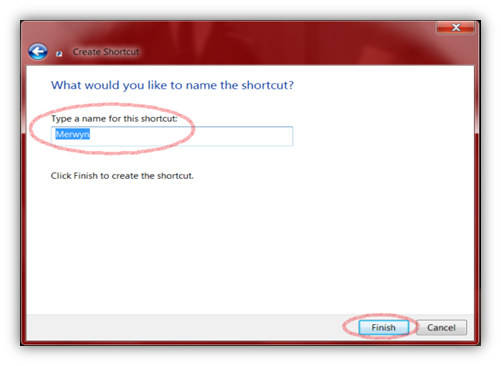
4. You will find the shortcut ‘Merwyn’ on your desktop as shown below:
Create Your Own Run Command
5. Now press ‘Win + R’ key and enter %windir% in the Run Command. This will open the Windows folder. Cut the shortcut which you created before and paste in the Windows folder.
image
Going forward whenever you want to open the folder Merwyn, you need to just press ‘Win + R’ key and enter Merwyn and press Enter.

Thursday, 18 July 2013

Remove or Add Windows Components in Xp,Vista and 7


Wednesday, 17 July 2013

Integrate Google Apps with Windows 8

google-apps-on-windows-8[4]
Windows 8 is designed to push Microsoft’s web services: Bing, Internet Explorer, Outlook.com, and more. However, Windows 8 isn’t limited to just Microsoft’s services. Google services like Gmail, Google Search, Chrome, and more can all be integrated with Windows 8.
Google hasn’t made many Modern apps for Windows 8 and has no intention of doing so, but important Google services like Gmail work in the included apps. Unfortunately, contact and calendar sync will stop working in July.

Google Search

Google has made one modern app: the Google Search app. Install it from the Windows Store and you’ll get a tile that brings up a Windows 8-style Google search screen. This app is designed to compete with Microsoft’s Bing search app.
If you use Internet Explorer, you can also change IE’s default search engine to Google. This option is only accessible from the desktop version of Internet Explorer, although changing it also affects the Modern version of Internet Explorer.

Chrome

Google offers a version of Google Chrome for Windows 8. If you install Chrome and set it as your default browser, you will be able to use a Modern version of Google Chrome in the new Windows 8 environment. This gives you access to your Google account’s synced bookmarks, apps, extensions, and other browser data.
You can toggle between the two styles of Google Chrome browser – desktop mode and Windows 8 mode – using the Relaunch Chrome option in Chrome’s menu.
Note that Google Chrome is not available on Windows RT. Microsoft bans third-party browsers on Windows RT, just as they ban third-party desktop apps. On a Windows RT machine like the Microsoft Surface RT, you will have to use Internet Explorer for all your web browsing.

Gmail, Contacts, & Calendar

The Mail app included with Windows 8 supports Gmail accounts. You will be able to read your emails, send emails, and see new mail notifications for your Gmail account on the Mail app’s live tile.
To add your Google account, open the Mail app, press Windows Key + I to open the Settings charm, and select Accounts.
Select the Google account option and enter your Google account’s email address and password.
Unfortunately, this is a time of upheaval. While you can currently add Google accounts and sync your contacts and calendars with the People and Calendar apps on Windows 8, Google is removing the Microsoft Exchange ActiveSync support for free accounts. (Microsoft charges Google a licensing fee to offer this service.)
Exchange ActiveSync (EAS) support will be deactivated on July 31, 2013. After this date, you will have to access Gmail via IMAP in the Mail app. Contacts and calendars in the People and Calendar apps will not be available unless Microsoft adds support for the CalDAV and CardDAV standards to these apps.

Pin It

Google’s web apps can be sort-of integrated with Windows 8’s start screen with the pinning feature. You can pin shortcuts to websites such as Google Drive (formerly Google Docs) or Google Maps to the start screen, allowing you to access them with a single click.
To pin a website to your Start screen in Chrome, you first have to open Chrome’s menu, point to Tools, and select Create Application Shortcuts. Create a shortcut on your desktop. You can then right-click the desktop shortcut and select Pin to Start.